To fix NET::ERR_CERT_DATE_INVALID, first correct your device’s date and time, then check whether the website’s certificate has expired or is not valid yet. If the certificate is outside its validity period, the site owner must fix it. Clearing browser history cannot renew an expired certificate.
What Does This Error Mean?#
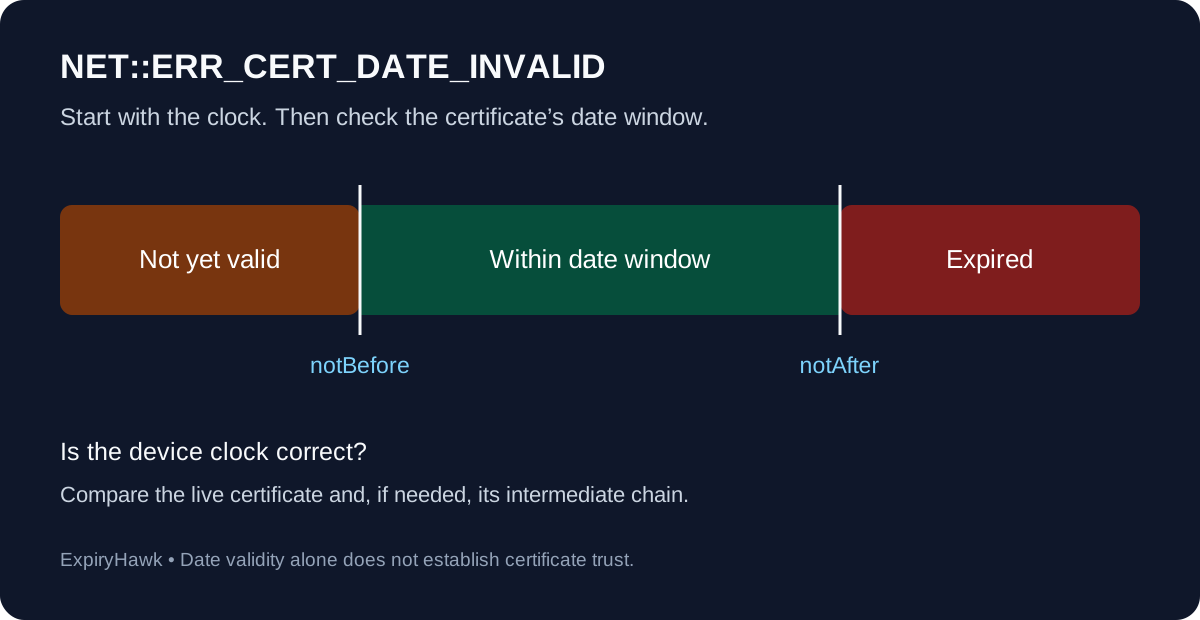
Chrome uses this error when a certificate appears outside its allowed dates. Chromium’s error definitions identify expired and not-yet-valid certificates as causes.
Certificates contain two boundaries: notBefore and notAfter. The current time must fall within that interval, as defined in RFC 5280’s validity section. An incorrect device clock can make an otherwise current certificate appear invalid.
1. Correct Your Device Clock#
Open your operating system’s date and time settings. Check the year, date, time, and time zone. Enable automatic time synchronization where available, synchronize the clock, and reload the page.
Google’s Chrome troubleshooting guide specifically recommends checking the device clock for this error. Avoid changing the clock backward just to make an expired certificate appear current.
If several unrelated HTTPS websites fail on the same device, start here. If the clock repeatedly resets after a restart, investigate the device’s time synchronization or hardware with your administrator.
2. Compare Another Device and Network#
Open the exact same hostname on another up-to-date device. If possible, compare your usual connection with a mobile data connection.
These comparisons provide clues, rather than proof:
- Only one device fails: recheck its clock, updates, and the certificate it receives.
- Only one network fails: investigate a proxy or HTTPS inspection system with the network administrator.
- Several devices and networks fail: investigate the public website’s certificate and deployment.
Record the full hostname, error code, and certificate dates. Do not enter passwords or payment details by bypassing the warning.
3. Inspect the Certificate’s Dates#
Website owners can inspect the certificate presented by the live endpoint:
openssl s_client -connect example.com:443 -servername example.com </dev/null \
  | openssl x509 -noout -dates -issuer -subject
Replace both hostnames. Compare notBefore and notAfter with the actual current time; OpenSSL commonly displays these in GMT. The command reads the server certificate’s details and is not a complete chain or hostname validation test. See OpenSSL’s s_client and x509 documentation.
If that certificate is current, inspect the browser’s certificate chain too: a date problem can involve an intermediate certificate rather than the website certificate itself.
4. Fix the Endpoint, Then Retest#
Renew and deploy an expired certificate at the service handling public HTTPS. For a not-yet-valid certificate, verify the actual time and certificate dates before asking your certificate provider to investigate.
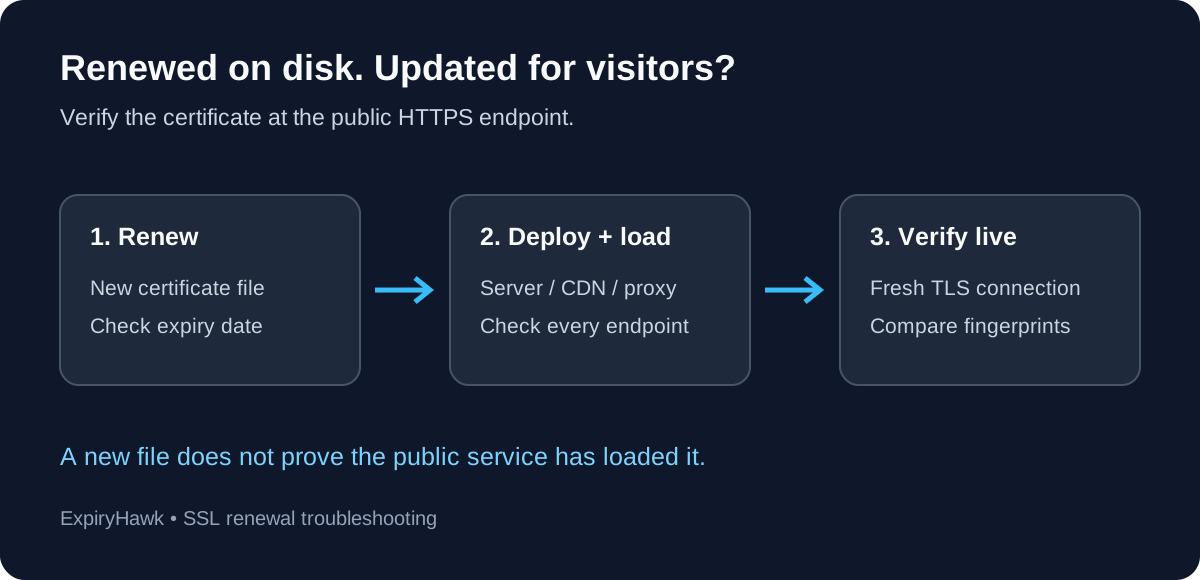
If renewal already succeeded, follow SSL Renewed but Still Showing Expired? to check deployment and reloads. Include every relevant CDN, load balancer, or server endpoint in your checks.
After the correction, make a fresh connection and confirm the warning has disappeared. For an independent view of the public endpoint, use the ExpiryHawk SSL Checker.