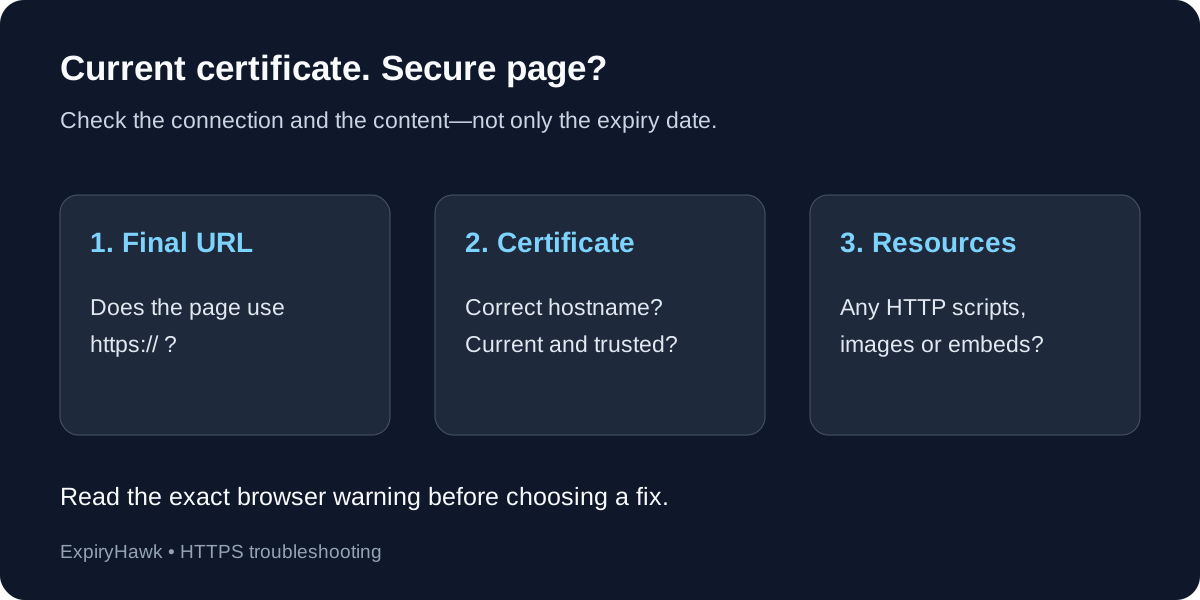
If your SSL certificate is valid but the browser says “Not Secure,” first check whether the page actually loaded over HTTPS. Then inspect mixed content and certificate errors for the exact hostname. A future expiry date alone does not prove that the browser trusts the connection or that every resource on the page uses HTTPS.
1. Check the Final URL#
Click the address bar and inspect the full URL after redirects. If it begins with http://, that page is not using TLS—even if the server has a perfectly good certificate available on HTTPS.
Open the same address with https://. If it works, configure your website or hosting platform to redirect HTTP traffic to HTTPS. Update navigation links and your CMS’s public site URL so they consistently use the secure address.
Test both the bare domain and www variant before redirecting between them. Each HTTPS hostname must work before it can safely redirect visitors elsewhere. Google’s connection guide explains how Chrome distinguishes secure connections from insecure pages.
2. Find Mixed Content in Developer Tools#
An HTTPS page can still request resources using HTTP. This is mixed content. Examples include old image URLs, embedded frames, scripts, and stylesheets left behind after a site migration.
Open browser developer tools, reload the affected page, and inspect the Console and Issues panels. In Chrome, the Privacy and security panel also helps diagnose HTTPS protection. Chrome’s panel documentation explains how to inspect insecure origins.
Fix the specific URLs reported by the browser:
- Change resource URLs to HTTPS only after confirming the destination supports it.
- Replace insecure third-party embeds with supported HTTPS alternatives.
- Correct URLs generated by templates, plugins, stylesheets, and CMS settings.
Browsers upgrade some mixed resources and block others; the visible indicator depends on what happened and the browser version. Do not assume every HTTP resource produces the same warning. Mozilla’s mixed-content documentation describes those behaviors.
3. Read the Actual Certificate Error#
A full-page “Your connection is not private” warning needs a different investigation from an HTTP page’s address-bar label. Record the exact error code rather than treating every warning as an expiry problem.
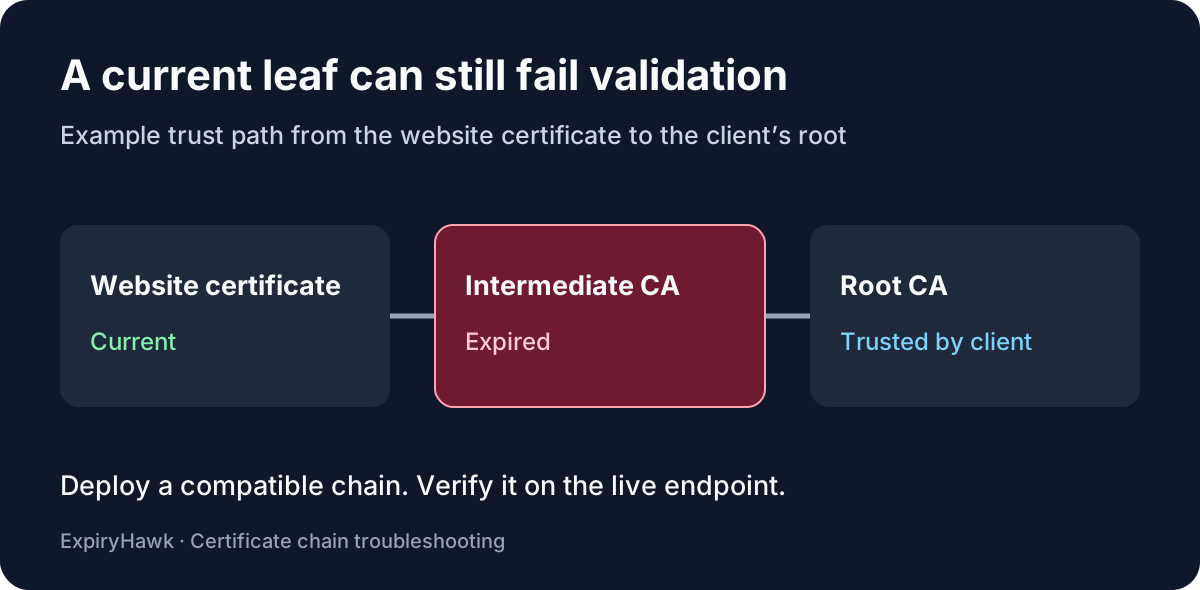
Check that the certificate covers the hostname in the address bar, and that the server sends the required intermediate certificates. A certificate can have current dates while failing hostname or trust checks. Inspect the certificate presented by the public CDN or load balancer, rather than relying on a file stored at the origin.
If the warning specifically concerns certificate dates, follow How to Fix NET::ERR_CERT_DATE_INVALID.
4. Retest the Affected Pages#
After fixing URLs or server configuration, reload the page and check developer tools again. Test representative pages such as login, checkout, and older articles: a clean homepage does not prove every template or embed is correct.
Compare another current browser or device if the problem appears isolated. For a managed workplace device, ask the administrator to inspect any HTTPS interception involved.
Use the ExpiryHawk SSL Checker for an independent certificate check, and use browser developer tools to investigate page resources. Keeping certificates current and serving the complete page securely are both part of maintaining HTTPS.