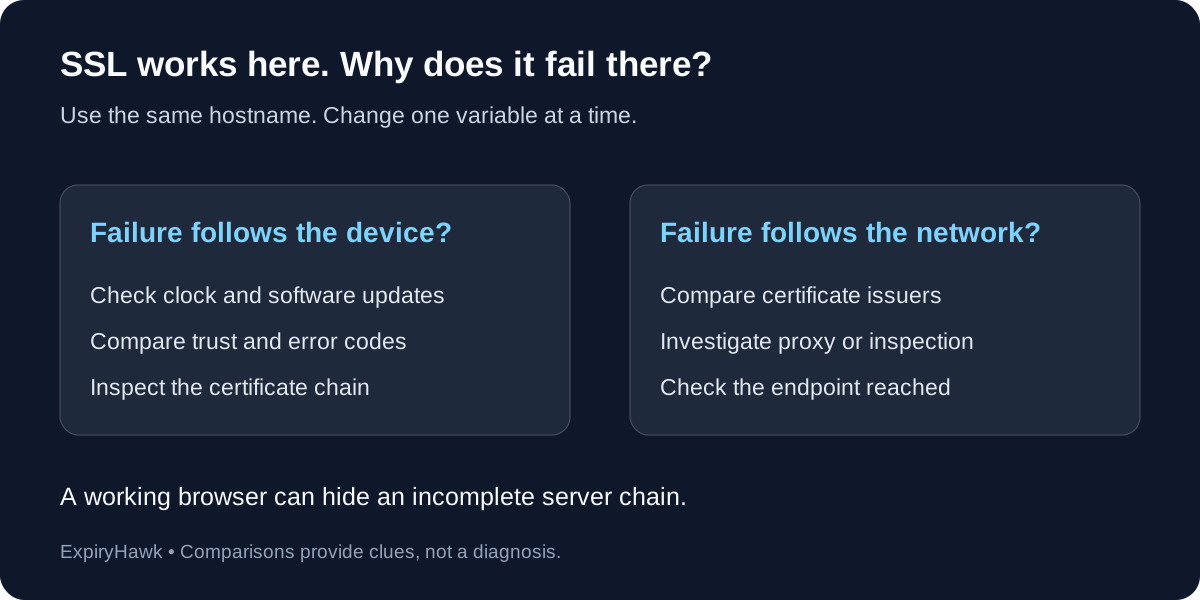
If SSL works on one device but fails on another, compare what each device connects to and what it trusts. Common causes include an incorrect clock, a missing intermediate certificate, an outdated trust store, or a network proxy presenting a different certificate. One successful browser visit does not prove that your server is configured correctly for every client.
1. Compare the Same Hostname and Network#
Open the exact same HTTPS URL on both devices. Check the final hostname after redirects: example.com and www.example.com may use different configurations.
Then change one variable at a time. Try the failing phone on Wi-Fi and mobile data, or compare two devices on the same Wi-Fi. Record the browser’s error code, operating system version, and the certificate’s issuer and expiry date where available.
| Observation | Investigate next |
|---|---|
| One device fails on both networks | Clock, software updates, and trust store |
| Multiple devices fail only on one network | Proxy, HTTPS inspection, or network routing |
| Different certificates appear | Endpoint selection or HTTPS interception |
| Only some clients reject the same certificate | Missing intermediates or compatibility |
These comparisons narrow the investigation; they do not establish the cause on their own.
2. Check the Device Clock and Updates#
Confirm the date, year, time, and time zone on the failing device. Enable automatic time synchronization where available. A wrong clock can make a certificate appear expired or not yet valid.
Install supported operating system and browser updates. Trust stores and certificate handling can differ between platforms and applications, so an older client may reject a chain accepted elsewhere. Let’s Encrypt’s compatibility guide explains how root trust affects validation for its certificates.
For a date-specific warning, see How to Fix NET::ERR_CERT_DATE_INVALID.
3. Check for Missing Intermediate Certificates#
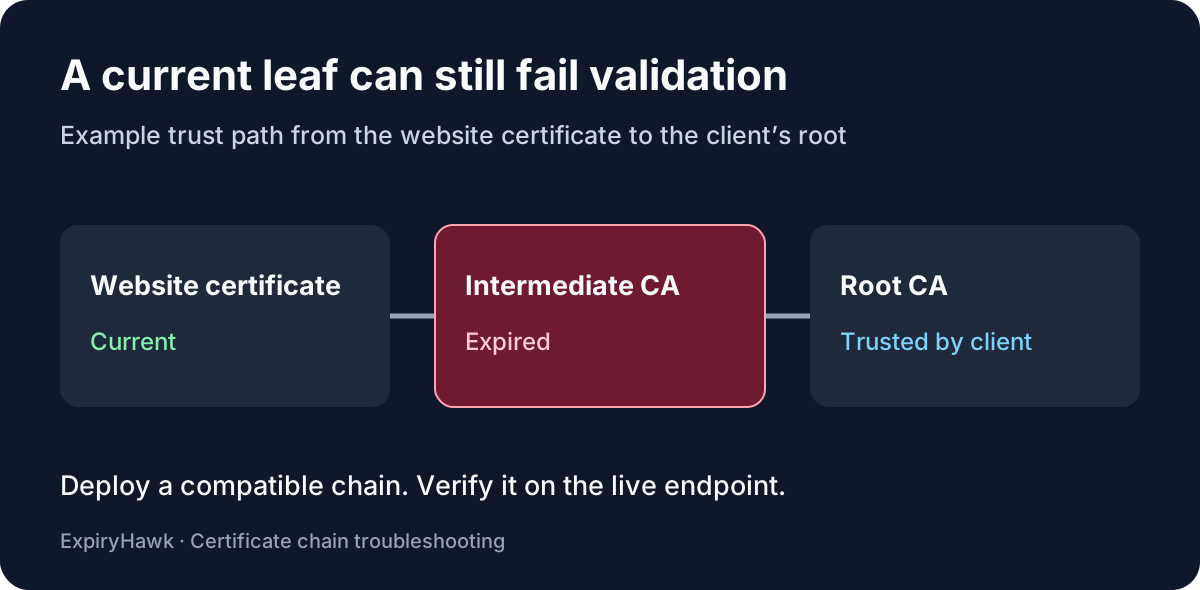
A server should present the intermediate certificates needed to link its website certificate toward a trusted root. If the chain is incomplete, a frequently used browser may still succeed because it already has an intermediate cached. Another device may fail.
NGINX’s HTTPS guide explicitly describes this caching behavior. Website owners should configure the issuer-provided chain bundle at the actual TLS endpoint, following the server’s instructions. Do not assume the certificate viewer shows only what the server sent; a client can build a chain using other available certificates.
Test again from the previously failing client after correcting deployment.
4. Compare the Public Endpoints and Issuers#
Devices can reach different IPv4 or IPv6 addresses, CDN locations, or load balancer nodes. Verify that all relevant endpoints serve an appropriate, current certificate and chain for the hostname.
If the failing device shows a company or security-software issuer while another shows your public certificate authority, investigate HTTPS inspection. Google’s Chrome error guide discusses antivirus scanning and workplace proxies as sources of certificate problems. Ask the administrator to correct managed trust configuration rather than installing an unfamiliar root certificate yourself.
After a fix, repeat the same device-and-network comparisons. Use the ExpiryHawk SSL Checker for an independent public certificate check, alongside testing on the affected device. Avoid bypassing certificate warnings as a permanent workaround.